
Blog Editor Features
Master the powerful features of our new blog editor including MDX editing, drag-and-drop images, YouTube embeds, and more. This comprehensive guide covers everything you need to create professional blog content.
Complete Blog Editor Walkthrough
Overview
Our brand new blog editor is packed with powerful features designed to make content creation seamless and intuitive. With native MDX support, drag-and-drop media handling, and intelligent embed detection, you can create rich, engaging blog posts faster than ever.
This guide will walk you through all the key features including the MDX editor, image handling, YouTube embeds, and more. Whether you're writing technical documentation or creative content, these tools will help you create professional-grade blog posts with ease.
Getting Started
Access the Blog Editor
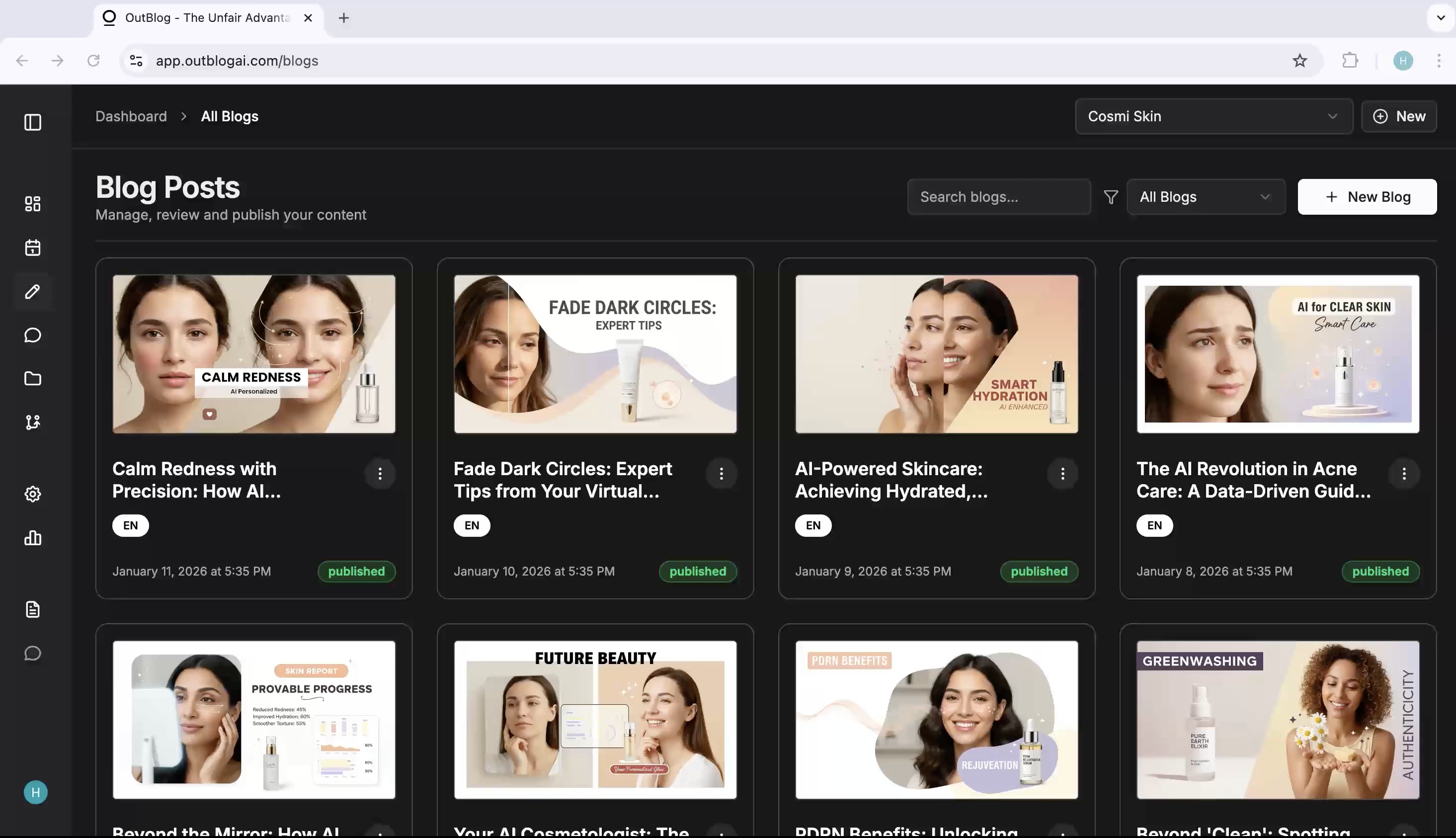
Navigate to your blog dashboard and click on any existing blog post or create a new one. The editor will open with the MDX editing interface ready to use.
Understanding the MDX Editor
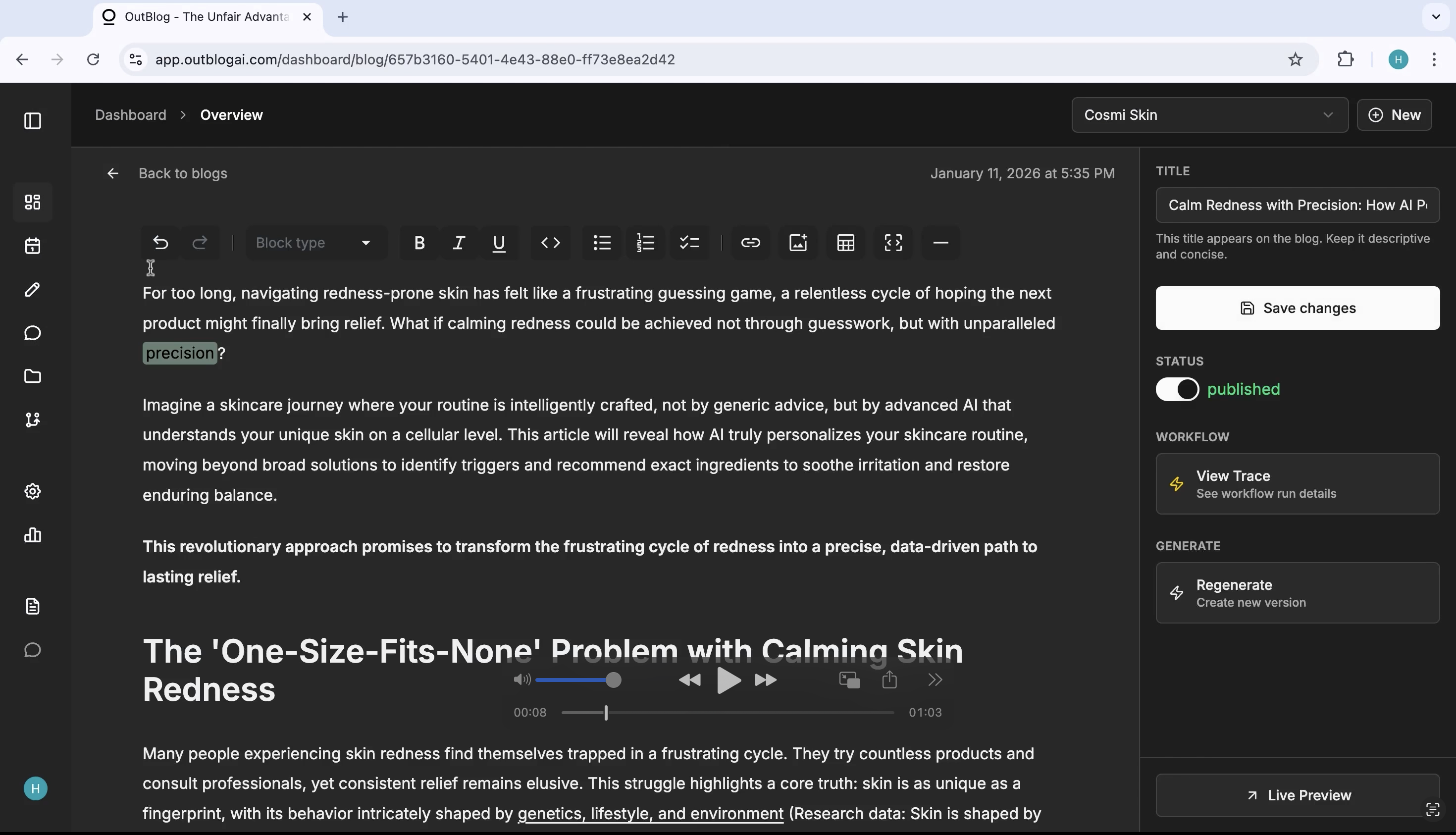
The MDX editor combines the simplicity of Markdown with the power of JSX components. You get a rich toolbar with formatting options, heading styles, lists, code blocks, and more.
- Formatting: Bold, italic, underline, and code formatting
- Headings: H1 through H6 heading styles
- Lists: Ordered and unordered lists
- Links: Insert hyperlinks with custom text
- Code blocks: Syntax-highlighted code snippets
- Tables: Create and edit rich data tables
Explore the Toolbar
Familiarize yourself with the editor toolbar located at the top. Each icon represents a different formatting or insertion tool. Hover over any icon to see a tooltip explaining its function.
Image Handling
Drag and Drop Images
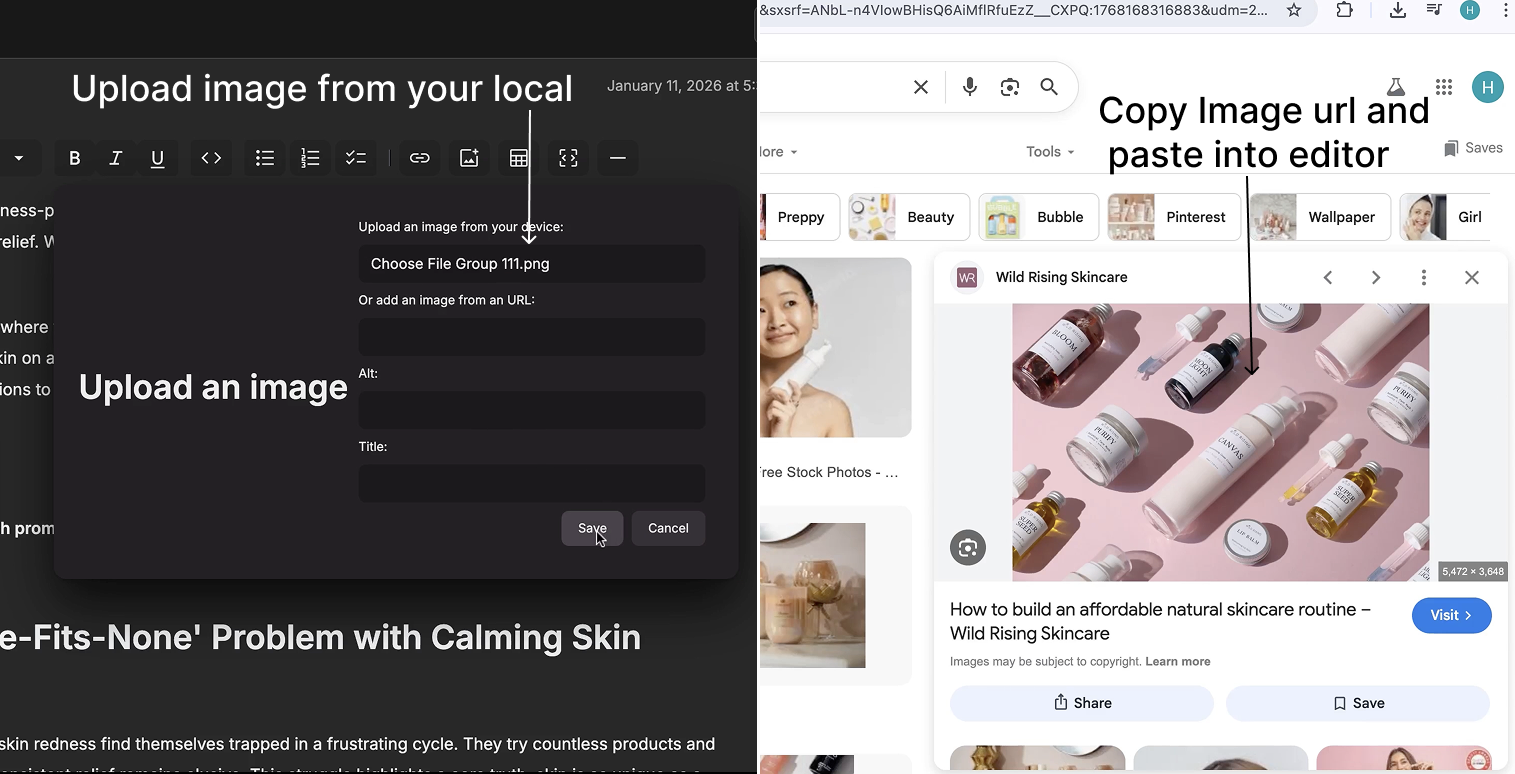
Simply drag any image file from your computer and drop it directly into the editor. The image will be automatically uploaded to our CDN and embedded in your content.
✨ Pro Tip: You can drag multiple images at once! They'll be uploaded sequentially and inserted at your cursor position.
Paste Image URLs
Copy any image URL from the web and paste it directly into the editor. We'll automatically detect it's an image URL and convert it into an embedded image.
Supported formats:
https://example.com/image.jpg
→ Automatically converts to embedded image
YouTube Video Embeds
Paste YouTube Links
Copy any YouTube video URL (including YouTube Shorts) and paste it directly into the editor. It will automatically convert into a responsive embedded video player.
Supported URL formats:
youtube.com/watch?v=VIDEO_IDyoutu.be/VIDEO_IDyoutube.com/shorts/VIDEO_IDyoutube.com/embed/VIDEO_ID
https://www.youtube.com/watch?v=dQw4w9WgXcQ
→ Converts to embedded YouTube player
Advanced Features
Code Blocks with Syntax Highlighting
Insert code snippets with syntax highlighting for multiple programming languages. Choose from JavaScript, TypeScript, Python, and more.
function greet(name) {
  console.log(`Hello, ${name}!`);
  return true;
}

greet("OutBlog");Rich Tables
Create and edit tables directly in the editor. Add headers, adjust columns, and format cell content with ease.
Markdown Shortcuts
Use familiar Markdown shortcuts to speed up your writing. Type `**text**` for bold, `*text*` for italic, or start a line with `#` for headings.
Quick Reference:
**bold** → bold*italic* → italic# Heading → Heading 1- List item → Bullet list[link](url) → Hyperlink`code` → Inline codeBest Practices
Optimize Images Before Upload
While our system automatically optimizes images, uploading pre-compressed images can speed up the editing experience. Use WebP format when possible for best performance.
Use Descriptive Alt Text
Always add meaningful alt text to images for accessibility and SEO. Our editor makes it easy to add alt text when inserting images.
Preview Before Publishing
Use the live preview feature to see exactly how your content will appear to readers. Check formatting, images, and embeds on different screen sizes.
⚠️ Important: Always preview your content before publishing to ensure all media loads correctly and formatting appears as intended.