
 Framer
Integrate OutBlog to
Framerin minutes
Connect your Outblog account with Framer to move your AI-generated blogs into your Framer CMS. You’ll trigger a manual sync from Outblog, then review and publish from Framer.
How Framer Integration Works
The Framer integration lets you sync your Outblog articles directly into your Framer site collections using our official plugin. Articles are published via Framer (not directly from Outblog), so you always stay in control of what goes live.
Step-by-Step Configuration
Follow these simple steps to set up the integration and sync blogs into your Framer CMS when you’re ready.
Install the Outblog Plugin in Framer
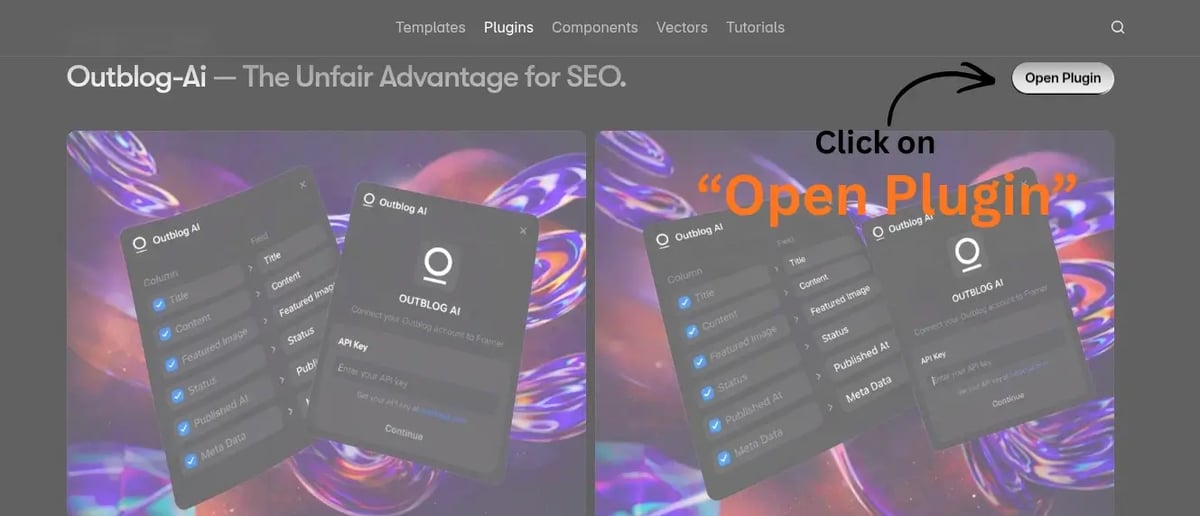
Open your Framer project and go to the Plugins marketplace. You can either search for "Outblog" inside Framer, or Just login to your framer account and open the plugin directly at OutblogAI, then click Install to add the plugin.
Create your CMS collection
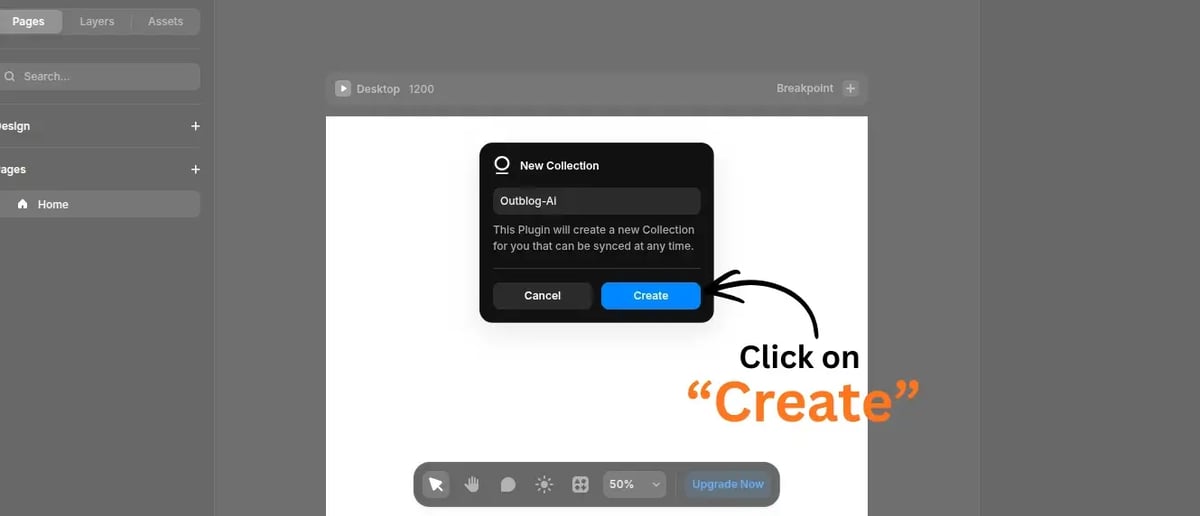
After installing, Framer will prompt you to create a new CMS collection for your blog posts. Give it a clear name like "Outblog-AI" (or your own naming convention) and click Create. This collection is where Outblog will sync all of your articles.
Enter your Outblog API key
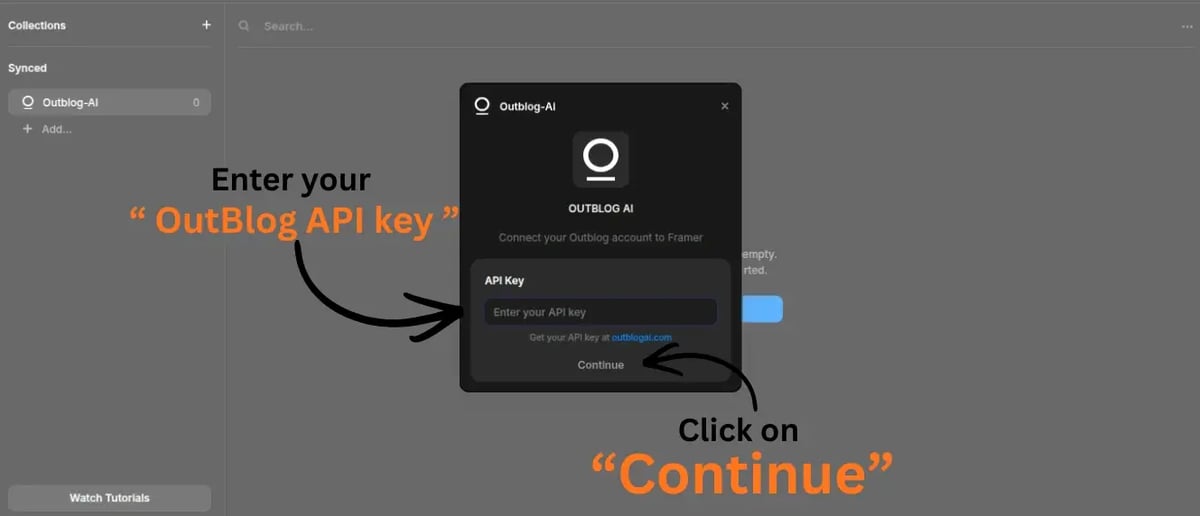
Next, the Outblog AI plugin will ask for your API key. Paste the key from your Outblog dashboard and click Continue to securely connect your Outblog account with Framer.
How to find your Outblog API key
- Login to Outblog with your credentials.
- Select the project you want to use for syncing blog content to Framer.
- Go to the Project tab in the left sidebar.
- Open the Integration section inside your project settings.
- Enable Framer Integration to generate your API key.
- Copy the generated key and paste it into the API Key field in the Framer plugin dialog.
Choose what to import into Framer
Select which Outblog fields you want to sync into your Framer collection. We recommend keeping Title, Content, Featured Image, Status, Published At and Meta Data enabled, then click Import Articles. You can always tweak these mappings later from the Manage options on your Outblog-AI collection in Framer.
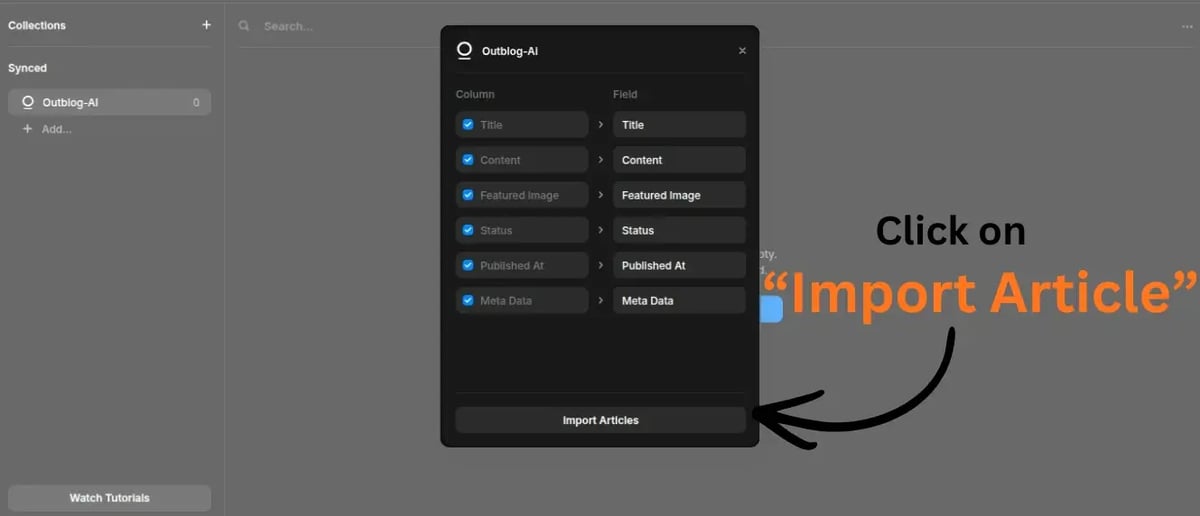
When you import again, Outblog will update existing articles in this collection instead of creating duplicates, using the field mappings you configured from the collection's Manage menu.
Review synced articles in Framer CMS
Once the import finishes, your Outblog posts will appear in the Outblog-AI collection inside Framer. From here you can bind any article to your designs, filter by status (draft or published), and publish changes like a normal Framer CMS project.
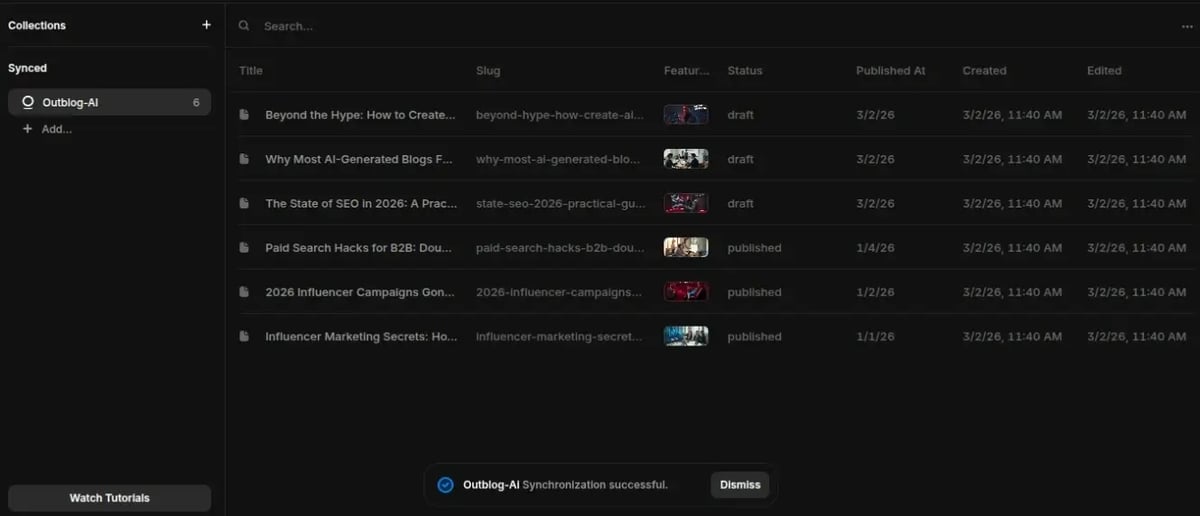
After this step, your content is fully managed inside Framer CMS. The connection with Outblog is set up – the only things left are syncing and publishing. Use the Sync button at the top of the collection page whenever you want to pull the latest articles from Outblog, then publish those changes from Framer.
Your Outblog project is now connected to Framer, and your articles are available inside the Outblog-AI collection. You can start dropping any synced blog post into your Framer pages, sections, and components.
What Gets Synced
When you trigger a sync from Outblog, we create or update items inside your Framer CMS collection. This lets you preview everything in Framer first, and then publish on your own schedule.
Article Content
- Full blog post content with MDX support
- Embedded images and media files
- YouTube and social media embeds
- Code blocks and syntax highlighting
SEO & Metadata
- SEO-optimized titles and descriptions
- Meta tags and Open Graph data
- Structured data and schema markup
- Canonical URLs and slug management
Author & Taxonomy
- Author profiles and bio information
- Categories and tags hierarchy
- Publication dates and scheduling
- Featured article status
Sync Behavior
- Manual sync triggered from Outblog (Framer doesn’t support scheduled cron jobs)
- Updates overwrite the same CMS item when the slug matches
- You decide when to publish from Framer after reviewing changes
- Draft vs published status stays in Framer so your workflow remains unchanged
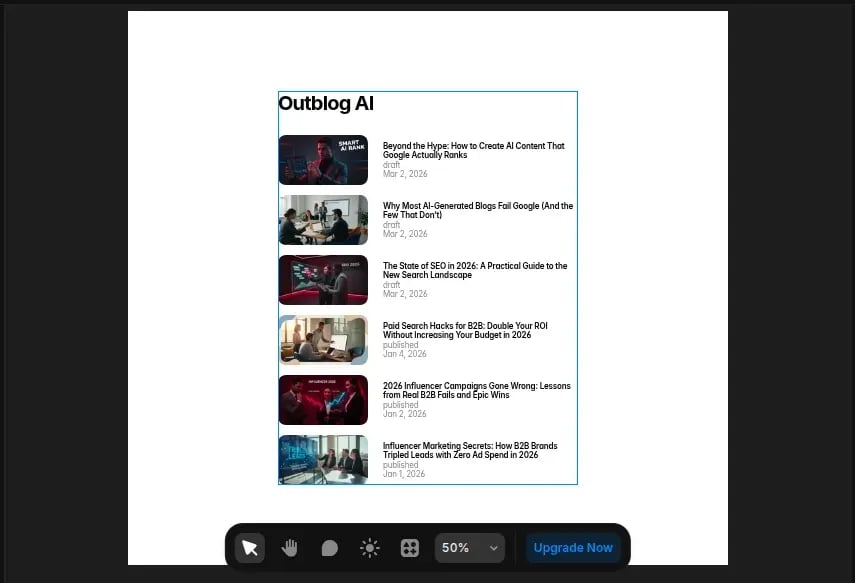
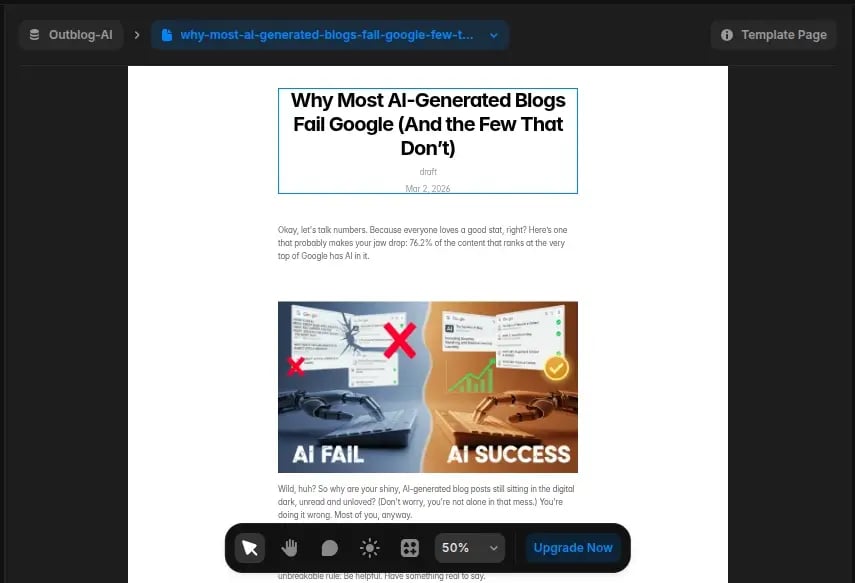
How a published blog looks in Framer
Troubleshooting
Common issues and how to fix them during the setup process.
Plugin not found in Framer
Ensure you are searching in the official Framer plugin store. If it doesn't appear, try refreshing the page or restarting the Framer app.
CMS collections failed to create
This usually happens if there's a naming conflict. Check if you already have collections named "Blog" or "Authors" and rename them before installing the plugin.
Syncing is delayed
It might take up to a few minutes for new articles to appear in Framer CMS depending on server load. Please be patient.
Authentication errors
If you cannot log in, verify your credentials on the Outblog website directly. If the issue persists, clear your browser cookies and try again.
Integration complete
You have successfully integrated Outblog with Framer. You can now sync articles to Framer and publish when you’re ready.