
Integrate OutBlog to
WordPressin minutes
Connect your Outblog account with WordPress to automatically sync all your AI-generated blog posts. With built-in cron scheduling, your content stays fresh without manual intervention.
How WordPress Integration Works
The WordPress integration syncs your Outblog articles directly into your WordPress site using our official plugin. Articles are automatically published via WordPress cron jobs, keeping your blog fresh and up-to-date without manual work.
Step-by-Step Configuration
Follow these simple steps to set up automatic syncing between Outblog and your WordPress site.
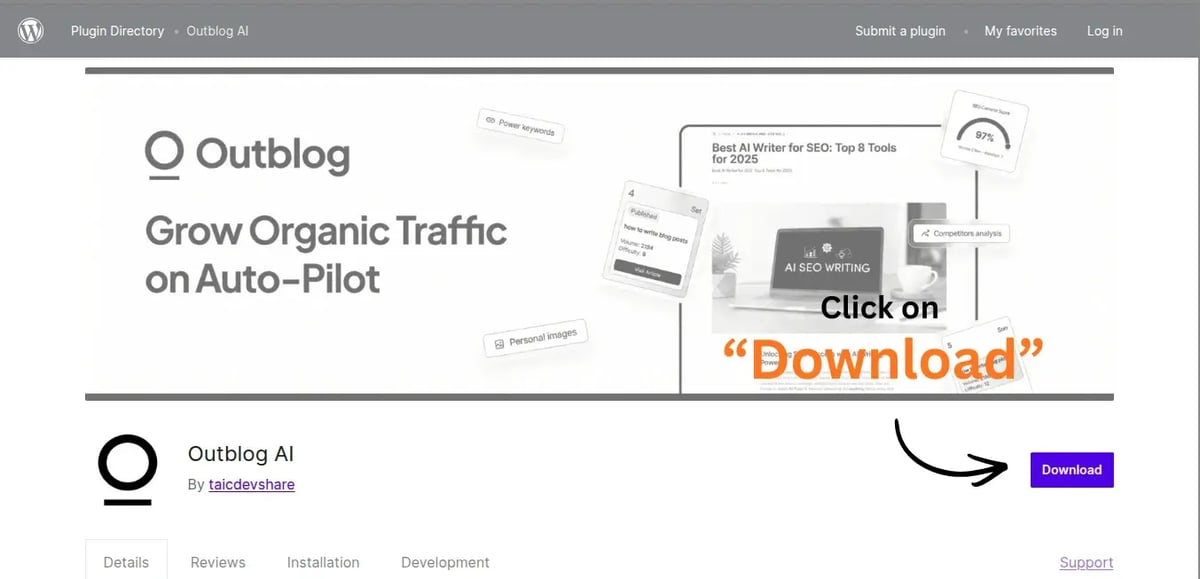
Download and install the plugin
Download the official OutblogAI plugin from this Outblog link, or search for "OutblogAI" in the plugins section on WordPress.org. You can either upload the plugin folder to /wp-content/plugins/ via FTP, or install it directly from your WordPress admin dashboard.
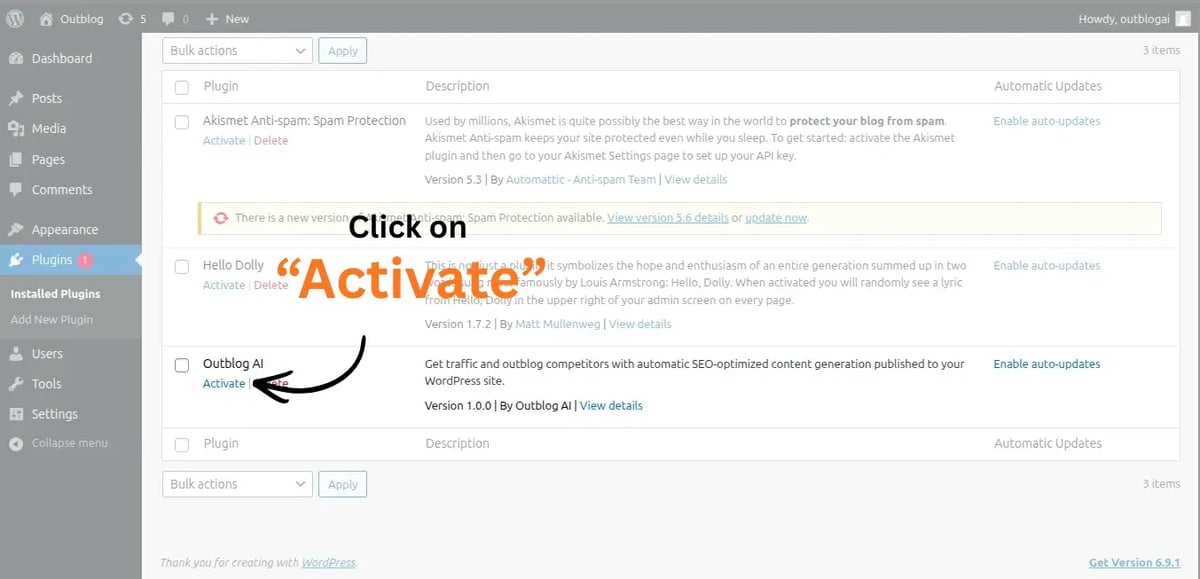
Activate OutblogAI in WordPress
In your WordPress admin, go to the Plugins section and click the Activate button for the OutblogAI plugin. Once activated, you'll see OutblogAI appear in your WordPress sidebar menu. Refer to the screenshot below for how it should look.
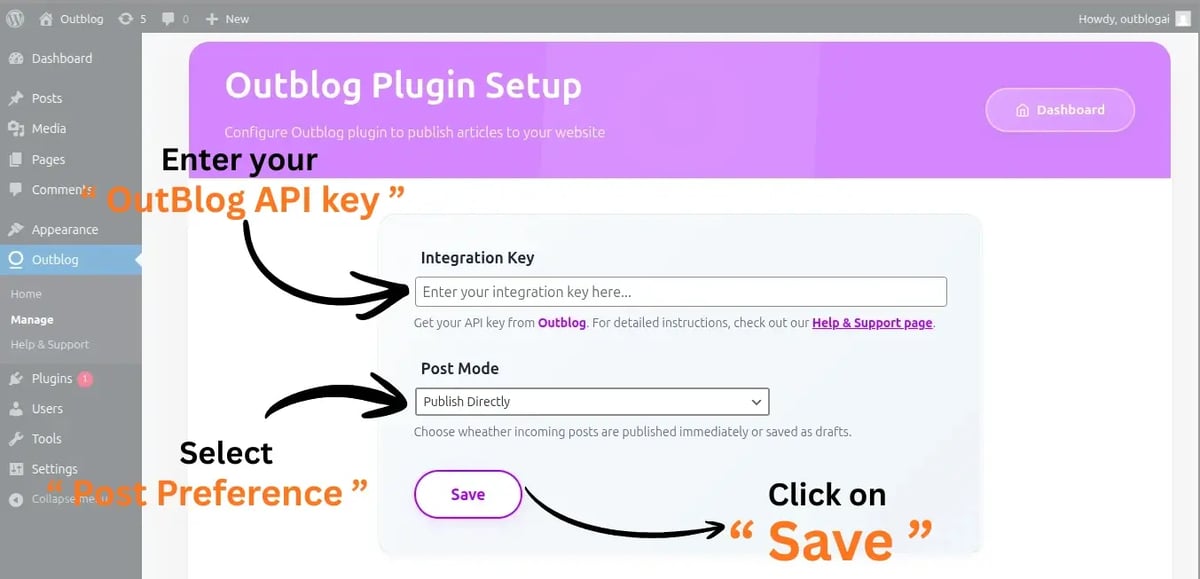
Add your Outblog key and choose publish behavior
Open the OutblogAI page from your WordPress sidebar. You'll be taken to the plugin's manage screen. In the Integration tab, paste your Outblog integration key, choose whether new incoming posts should be saved as drafts or published automatically, then click Save.
How to find your Outblog integration key
- Login to Outblog with your credentials.
- Select the project you want to use for syncing blog content to WordPress.
- Go to the Project tab in the left sidebar.
- Open the Integration section inside your project settings.
- Enable WordPress Integration to generate your integration key.
- Copy the generated key and paste it into the key field in the OutblogAI WordPress plugin settings.
Review and control synced blogs
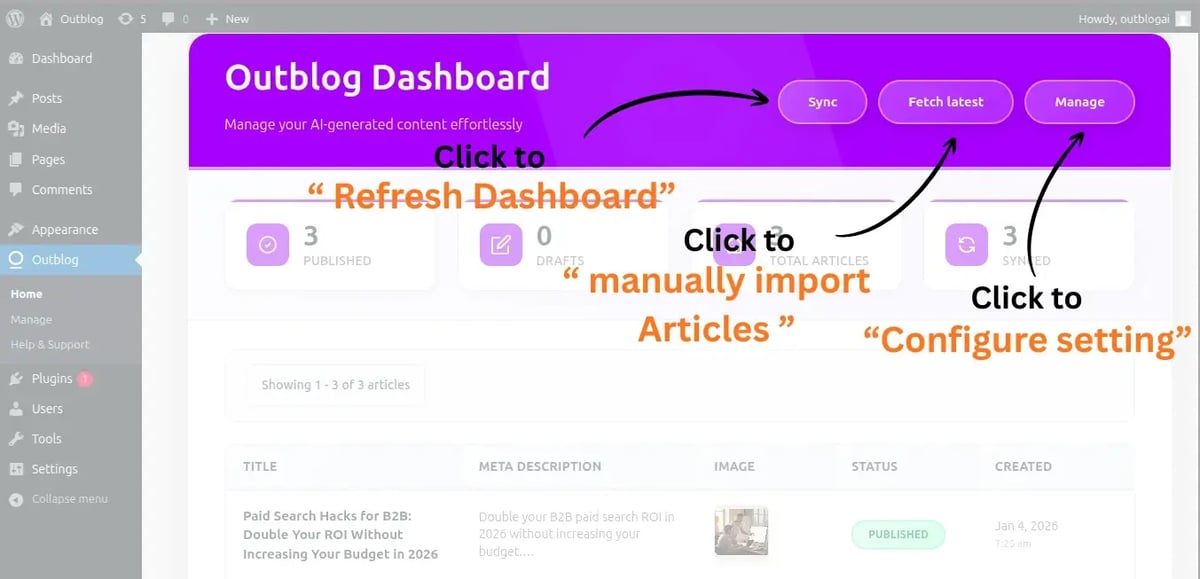
After saving, you'll land on the plugin home/dashboard. It lists all blogs fetched automatically from your Outblog project that are in published status, and it applies your choice to save them as draft or published inside WordPress. Use the controls below to manage the feed:
- Manual Fetch: Pull the latest blogs on demand.
- Sync: Re-sync blogs if items were removed in WordPress or to refresh published entries.
- Manage: Update integration settings, reset, or change publish/draft behavior.
Edit posts from the WordPress Posts tab (optional)
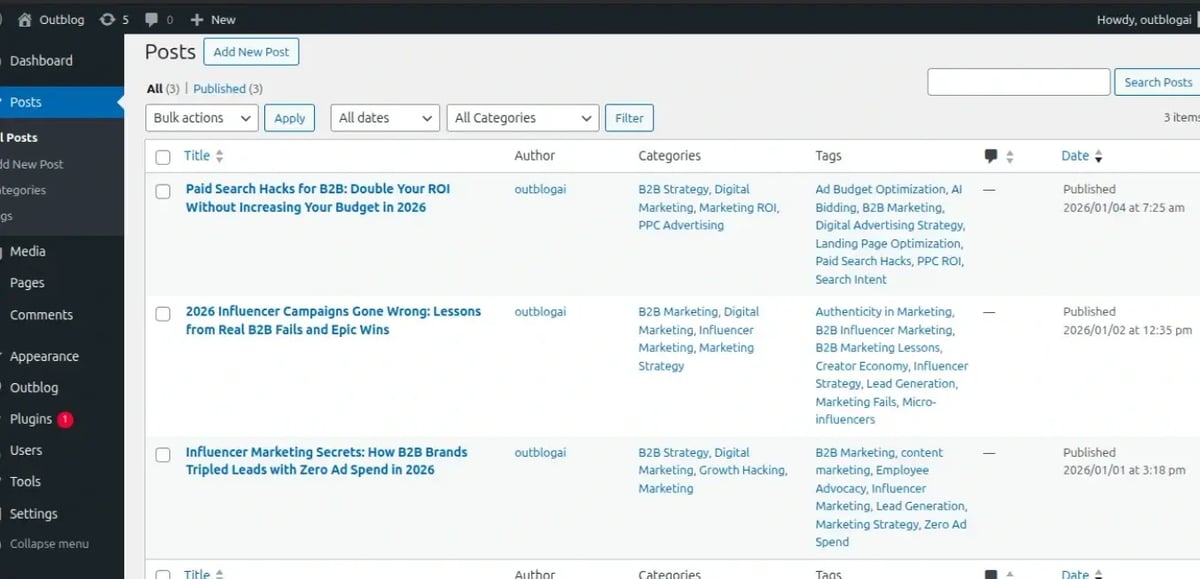
All fetched posts—whether they were saved as published or kept as drafts—are also visible in your standard Posts section in the WordPress sidebar. From there, you can open any post to tweak the content, update images, or make manual edits just like a normal WordPress post (this step is optional).
What Gets Synced
Our WordPress plugin uses intelligent cron jobs to automatically sync your content on your chosen schedule. This ensures your WordPress site always has the latest articles without manual intervention.
Article Content
- Full blog post content with HTML formatting
- Featured images and media files
- YouTube and social media embeds
- Code blocks and syntax highlighting
SEO & Metadata
- SEO-optimized titles and descriptions
- Meta tags and Open Graph data
- Structured data and schema markup
- Canonical URLs and slug management
Author & Taxonomy
- Author profiles and bio information
- Categories and tags hierarchy
- Publication dates and scheduling
- Featured post status
Sync Behavior
- Automatic cron-based syncing on your schedule
- Updates overwrite existing posts when slug matches
- New articles auto-publish or save as drafts
- Manual sync button for instant updates
Troubleshooting
Common issues and how to fix them during the setup process.
Plugin not appearing in WordPress
Make sure you're searching in the official WordPress plugin directory. If it doesn't appear, check your WordPress version compatibility or try refreshing the plugins page.
API connection failed
Double-check your API key from the Outblog dashboard. Ensure there are no extra spaces and that your WordPress site can make external API calls (check with your hosting provider).
Cron jobs not running
WordPress cron requires site traffic to trigger. For guaranteed execution, set up a server-level cron job or use a service like WP-Cron Control. You can also manually sync anytime from the plugin settings.
Images not displaying
Check your WordPress media library permissions and ensure your server allows external image downloads. You may need to adjust file upload limits in your php.ini or hosting settings.
Integration complete
You have successfully integrated Outblog with WordPress. Your content will now automatically sync to your WordPress site based on your schedule.